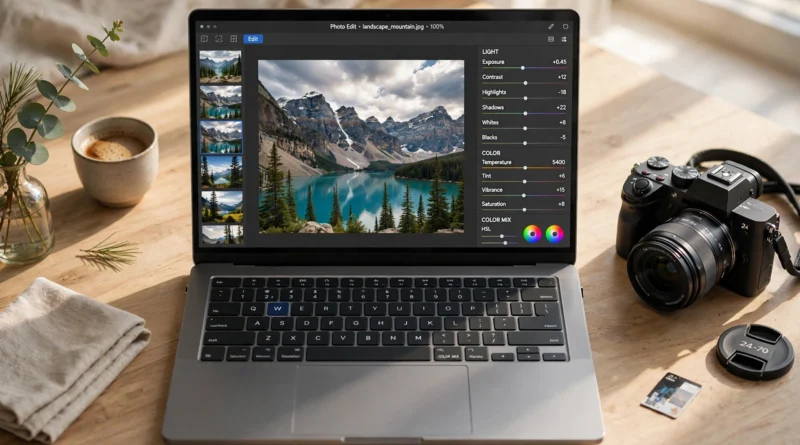
Best Laptop for Photo Editing: How to Pick the Right One for Your Photos and Budget
The best laptop for photo editing is the one with an accurate, well-calibrated display, at least 16 GB of RAM, a fast SSD, and a modern multi-core processor — with a dedicated graphics card added if you use AI tools, work with large RAW files, or also edit video. For most photographers, a 14- or 16-inch laptop with 32 GB of RAM, a 512 GB or 1 TB SSD, and a screen covering close to 100% of sRGB (or DCI-P3 for wider-gamut work) is the sweet spot. You do not need the most expensive machine on the market; you need the right balance of screen, memory, and storage for the files you actually edit.
Key Takeaways
- The display matters more than raw speed: an inaccurate screen makes every edit a guess.
- 16 GB of RAM is the realistic floor; 32 GB is the comfortable target for regular RAW work.
- A dedicated GPU is optional for basic edits but speeds up AI denoise, lens blur, and exports.
- Buy for your file sizes and software, not for a brand name or a single benchmark.
- Check upgradeability before you buy: on many thin laptops, the RAM you choose is the RAM you keep.
What Makes a Laptop Good for Photo Editing?
Photo editing is different from web browsing or office work because the files are large and the work is visual. A single RAW file from a modern camera can be tens of megabytes, a panorama or a layered Photoshop document can run into gigabytes, and your screen is effectively your darkroom. That is why the usual ‘faster is better’ advice is incomplete. A laptop can have a powerful processor and still be a poor photo editing laptop if its screen shifts colours, its memory fills up, or its storage is too small for a growing photo library. The four parts that decide the experience are the display, the memory (RAM), the processor and graphics, and the storage. Get those four right and the rest — keyboard, ports, battery, weight — becomes a matter of personal preference and travel habits.
How Much RAM Do You Need for Photo Editing?
Is 16 GB of RAM enough for photo editing?
For many photographers, yes — 16 GB is enough to start with. Adobe lists 8 GB as the minimum and 16 GB or more as the recommended amount for both Lightroom Classic and Photoshop. That means 16 GB handles everyday editing: browsing a catalog, adjusting exposure and colour, cropping, and exporting JPEGs. If you edit occasionally, work with JPEGs or smaller RAW files, and keep only a few apps open, 16 GB will feel comfortable.
When should you choose 32 GB or more?
Choose 32 GB if you edit regularly, work with high-megapixel RAW files, build panoramas, stitch HDR images, or keep many Photoshop layers open at once. At 32 GB you can run Lightroom and Photoshop side by side, keep a browser open for reference, and export a batch without the machine slowing to a crawl. Photographers who edit professionally, or who also edit video, should treat 32 GB as the starting point and consider 64 GB only if they regularly handle very large files or complex composites. More RAM does not make a single edit faster once you have enough; it stops the machine from stalling when the workload grows.
One warning matters here: on many thin laptops and on all current MacBooks, RAM is soldered in place and cannot be upgraded later. If you are choosing between 16 GB and 32 GB on such a machine, and you expect your editing to grow, buy the larger amount now. It is far cheaper than replacing the whole laptop in two years.
Do You Need a Dedicated Graphics Card for Photo Editing?
Not for basic edits. Lightroom Classic can run on integrated graphics, and Adobe’s minimum for GPU acceleration is a graphics processor with DirectX 12 support and 2 GB of GPU memory. For slider adjustments, cropping, and standard exports, integrated graphics on a modern processor are fine. A dedicated GPU becomes worth paying for when you use the tools that lean on it: AI denoise, lens blur, super resolution, generative fill, and batch exports of large files. A dedicated card with around 8 GB of memory is the simpler route to fast performance in those tools, and it also helps if you edit video alongside photos.
If your budget forces a choice between more RAM and a dedicated GPU for stills-only editing, choose the RAM first — memory shortages slow everything, while a missing GPU only slows specific accelerated features.
What Display Should You Look For?
The display is where photo editing laptops are won or lost. Look for these things, in order:
- Colour accuracy over resolution. A 2.5K or 3K screen with factory calibration and close to 100% sRGB coverage will serve you better than a 4K screen with washed-out colours. If you deliver work for print or for wide-gamut screens, look for DCI-P3 coverage as well.
- Brightness and finish. Around 400 nits or more helps in bright rooms; a matte or anti-glare finish reduces reflections when you edit near a window.
- Size. A 14-inch screen is portable and fine for travel editing; a 16-inch screen gives you more room for panels and timelines and is easier on the eyes for long sessions. A 13-inch screen works, but you will spend more time zooming and hiding panels.
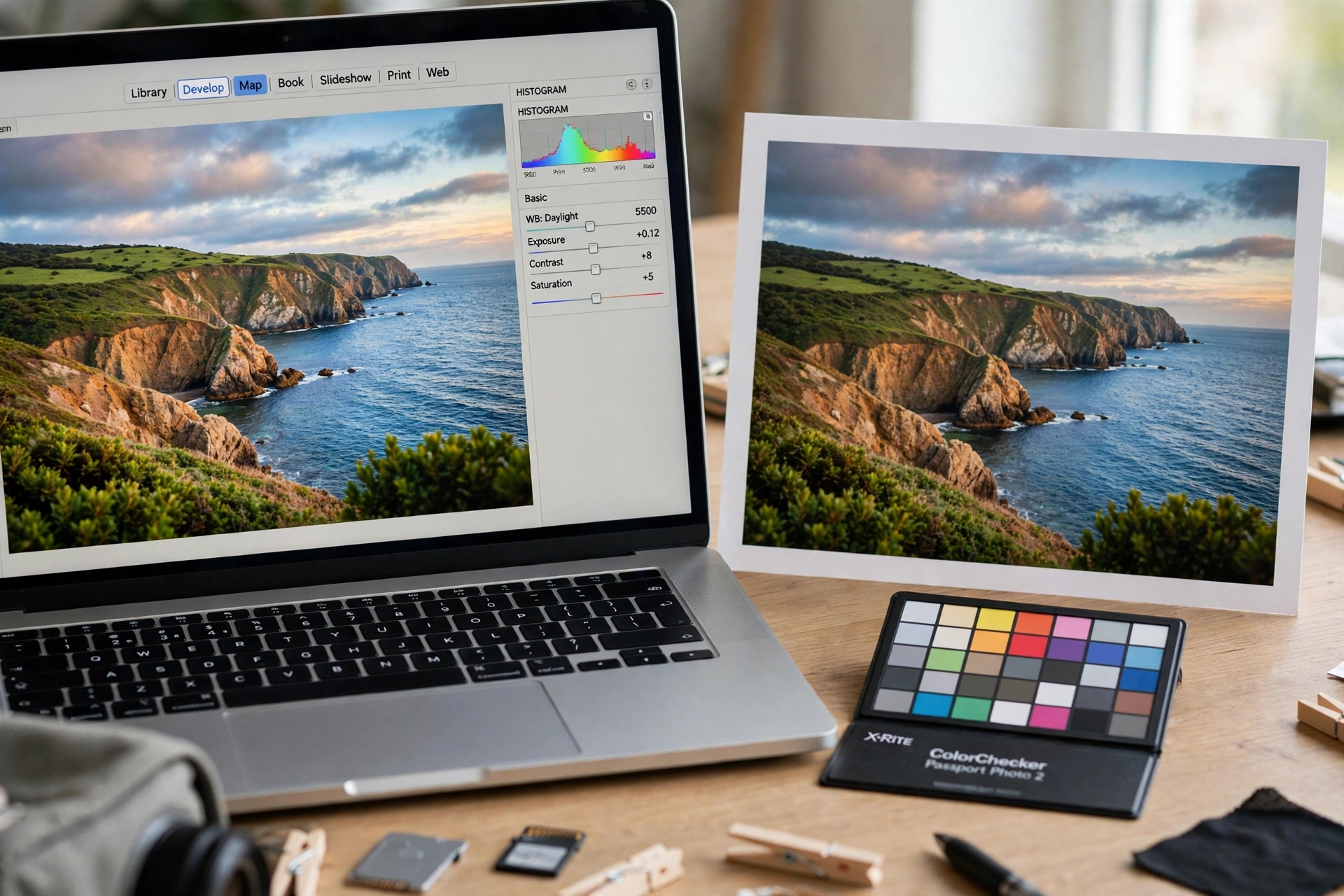
- Calibration. No laptop screen should be trusted blindly for client or print work until it has been calibrated with a hardware calibrator. Factory calibration is a good start, not a guarantee — screens drift over time, so recalibrate every few weeks if colour accuracy is part of your job.
For wider comparisons of current models, see the guides from TechRadar and PetaPixel.
Is OLED good for photo editing?
OLED screens show deep blacks and high contrast, which helps when you are judging shadows and dark tones. That contrast is not the same as accuracy, though: an OLED panel still needs to cover the right colour gamut and be calibrated before you trust it for print or client work. If you choose OLED, check its gamut coverage and calibration report rather than assuming the vivid picture means accurate colours. An IPS panel with strong calibration is often the safer, cheaper choice, and it avoids any worry about uneven wear over very long static editing sessions.
Which Processor and Storage Do You Need?
For the processor, a modern multi-core chip — a current Intel Core Ultra, AMD Ryzen, or Apple silicon chip — is enough for photo work. Single-core speed keeps Lightroom feeling responsive when you move sliders; multiple cores shorten batch exports. You do not need the flagship chip in the range; the step from a mid-range to a top-end processor is rarely the bottleneck for stills.
For storage, treat 512 GB as the floor and 1 TB as the comfortable choice. Your operating system, editing apps, catalog, and a working set of recent shoots live on the internal SSD, where speed matters. Older shoots and backups belong on an external drive, not crammed onto the internal disk until it is full — a nearly full SSD slows down and leaves no room for scratch files. Check whether the SSD can be upgraded later; on some laptops it can, on others it cannot, so size it generously at purchase if it is fixed.
| Use case | RAM | Storage | GPU | Display priority |
|---|---|---|---|---|
| Occasional editing, JPEGs and small RAW files | 16 GB | 512 GB SSD | Integrated is fine | 100% sRGB, calibrated |
| Regular RAW editing, Lightroom + Photoshop | 32 GB | 1 TB SSD | Dedicated, around 8 GB | 100% sRGB or DCI-P3, calibrated |
| Professional work, large files, AI tools, some video | 32-64 GB | 1-2 TB SSD | Dedicated, 8 GB or more | Factory-calibrated wide-gamut panel |
| Travel editing, portability first | 16-32 GB | 512 GB-1 TB SSD | Integrated or modest dedicated | 14-inch, bright, anti-glare |
Mac vs Windows for Photo Editing: Which Is Better?
There is no universal winner — the better system is the one that runs your software and fits your workflow. Lightroom Classic, Photoshop, and Capture One all run natively on both macOS and Apple silicon Macs and on Windows, so software availability rarely decides the question anymore. You can also compare current recommendations in the TechRadar guide to the best laptops for photographers and the PetaPixel guide to the best laptops for photo editing.
MacBooks appeal to photographers who value battery life, quiet operation, a consistent display pipeline, and the way Apple’s unified memory shares one pool between processor and graphics. The trade-off is fixed configurations: RAM and storage are chosen at purchase and cannot be upgraded, and repairs and upgrades cost more.
Windows laptops appeal to photographers who want more choice — different screen sizes, upgradeable RAM and storage on many models, dedicated NVIDIA graphics at more price points, and easier repair. The trade-off is that quality varies more between models, so you must check the specific screen and build rather than trusting the brand alone. Choose the operating system you already know, then judge the individual laptop on its display, RAM, and storage.
Are Gaming Laptops Good for Photo Editing — and for Video Editing?
Gaming laptops are often surprisingly good for photo editing, and the same strengths carry over to video editing. They pair strong multi-core processors with dedicated NVIDIA graphics and large, fast displays, which is exactly what AI tools and video timelines need. The catches are practical: they tend to be heavier, louder under load, and shorter on battery life, and their screens are sometimes tuned for speed rather than colour accuracy — so check the gamut and calibration, not just the refresh rate. A gaming laptop with a colour-accurate screen can be a smart buy for a photographer who also edits video, but a gaming laptop bought on refresh rate alone can be a poor photo tool.
The related question of the best Apple laptop for video editing follows the same logic: a MacBook Pro-class machine with ample unified memory and a wide-gamut display handles video well, but for stills alone you do not need to pay for video-level power.
What About a Budget Photo Editing Laptop?
A budget photo editing laptop is possible if you spend in the right order: display first, then RAM, then SSD, then processor, then GPU. A machine with a decent calibrated screen and 16 GB of RAM will edit photos better than a faster machine with a poor screen and 8 GB of RAM. Save money by choosing a previous-generation processor, a 512 GB SSD with an external drive for archives, and integrated graphics if you edit stills only. Avoid the false economy of 8 GB of soldered RAM — it is the one saving that makes the laptop feel old within a year.
For more on spending less without regret, see our best budget laptop guide. For students and engineers who also need a machine for coursework, the priorities overlap but are not identical — see our guide to the best laptops for engineering students.
Photo Editing Laptop Buying Checklist
Use this checklist in a shop or on a product page before you buy:
- Screen covers close to 100% of sRGB (or DCI-P3 for wide-gamut work) and has a calibration report or good independent measurements
- At least 16 GB of RAM (32 GB for regular RAW work); check whether it can be upgraded later
- At least 512 GB SSD (1 TB preferred); check whether the SSD can be upgraded later
- Modern multi-core processor; flagship chip not required for stills
- Dedicated GPU with around 8 GB of memory if you use AI tools or edit video
- Ports you need: USB-C/Thunderbolt, USB-A, and an SD card slot or a reliable reader
- Weight and battery life you can live with if you travel with it
- Return window long enough to calibrate the screen and test it with your own RAW files
FAQ
Can a normal laptop edit photos well? Yes, if it has enough RAM and an accurate screen. A normal laptop with 16 GB of RAM, a 512 GB SSD, and a calibrated display handles everyday photo editing. Specialist features only matter when your files or tools demand them.
How long should a photo editing laptop last? A well-chosen laptop should serve a photographer for four to five years. The parts that age first are usually RAM and storage, which is why buying 32 GB and 1 TB — or a model you can upgrade — extends its useful life more than buying the fastest processor.
Do I need a 4K screen for photo editing? No. Colour accuracy and calibration matter more than pixel count. A well-calibrated 2.5K or 3K screen is plenty for most work, and a 4K screen adds cost and battery drain without improving your edits.
Is a laptop or a desktop better for photo editing? A desktop gives you more power and a larger, cheaper calibrated monitor for the same money, but a laptop lets you edit anywhere and doubles as your travel machine. If you edit in one place, a desktop plus a good monitor is better value; if you travel or cull on location, a laptop is the practical choice.
Conclusion
The best laptop for photo editing is not the most powerful laptop you can afford — it is the one whose screen you can trust, whose memory will not run out on a large shoot, and whose storage leaves room for your library to grow. Start with the display, buy 32 GB of RAM if you edit regularly, choose at least 512 GB of fast SSD storage, and add a dedicated GPU only if your AI tools or video work justify it. Check the screen with your own files inside the return window, calibrate it, and you will have a machine that makes editing faster and, more importantly, makes your finished photos look the way you intended.